页面

2018年10月21日星期日

How to install Odis 4.4.10 Postsetup 69.0.20 on Windows 7

Tutorial: Odis 4.4.10 Postsetup 69.0.20 Windows 7 installation
Odis 4.4.10 download links:
Link 1: https://mega.nz/#!ejIQSC5A!FKM85bWo2QYLnPoQCSTfdyuYwhHqigZXdfY-OqVx7h0
Link 2: https://mega.nz/#F!3T4D1LRR!KCMMTO7W2j7b50UrwzWQJQ
NOTE of Link 1:
Password ONLY via PM to Pilic https://mhhauto.com/User-pilic#comments/1 (NEVER ask chinacardiags.com for pass!)
Tutorials below only used for link 1
IMPORTANT: ODIS 4.4.10 UNKNOWN SECURITY!!
ODIS 4.4.10 above is not tested by real professionals. It may come with unknown safety! Chinacardiags.com will hold no responsibilities of what happen to you with ODIS 4.4.
For sake of security, ODIS 4.3.3 (tested  http://www.chinacardiags.com/wholesale/newest-usb30-32g-odis-413-software-for-vas-5054a-support-multi-languages-45937.html ) is your way to go. It’s confirmed to work no issues with VAS 5054A head and VXDIAG VCX NANO 5054.
ODIS 4.3.3 Windows 7 install and works perfectly
https://youtu.be/5c2_q0vLGxs
How to install ODIS 4.4.10 on Windows 7:
1.Install Odis only WIN 7 32 or WIN 7 64
! ! ! ! Do not restart at the end ! ! !
2.Copy +Paste OffboardDiagLauncher.exe to “Program Files (X86) > Offboard_Diagnostic_Information_System”
3.Copy “de.volkswagen.odis.vaudas.launcher_4.44.1.jar “ to “Program Files (X86) > Offboard_Diagnostic_Information_System\plugins”
  1. For Win 7 32 . Extract “Odis 4.4.10 Program x86.rar “ to ! ! ! “PROGRAM FILES (X86)” ! ! !
5.For Win 7 64 . Extract “Odis 4.4.10 Program x86.rar “ to ! ! ! “PROGRAM FILES (X86)” ! ! ! AND Extract “Odis 4.4.10 Prgram Files.rar “ to ProgramData
6.RESTART
7.Do not start Odis
  1. Start > Edic Conf. Manager with USB and with Bluetooth
  2. Is detected 5054 start odis
How to install Postsetup 69.0.20 in Odis 4.4.10:
you have to make a fresh Installation,
after Setup odis
Change plugin,
after this you can install the postsetup
The video may help you:
https://youtu.be/xAe4DfqAS90
Note: There is another file comes with the launcher-archive. It is a jar file which has to copy to the plugins folder. Do a new install and before first start copy both Launcher and jar. After that the postsetup is nice!!!
ODIS 4.4.10 images...

Enjoy!

original: How to install Odis 4.4.10 Postsetup 69.0.20 on Windows 7

2018年10月18日星期四

How to use vvdi BE key pro version to change frequency 315MHZ or 433MHZ?

vvdi BE key pro improved version supports changing key frequency between 315Mhz and 433Mhz with VVDI MB tool software or who don’t have this tool, always in this way with PCB resistor.
Option 1: change key frequency 315 MHZ or 433MHZ with PCB resistor
This a new VVDI BE Key Pro Improved Version


Put the VVDI BE key into the device programmer of VVDI BGA tool to test the key frequency.
This is a complete new BE key unused.
Test the frequency with VVDI key tool, it is 315MHZ.
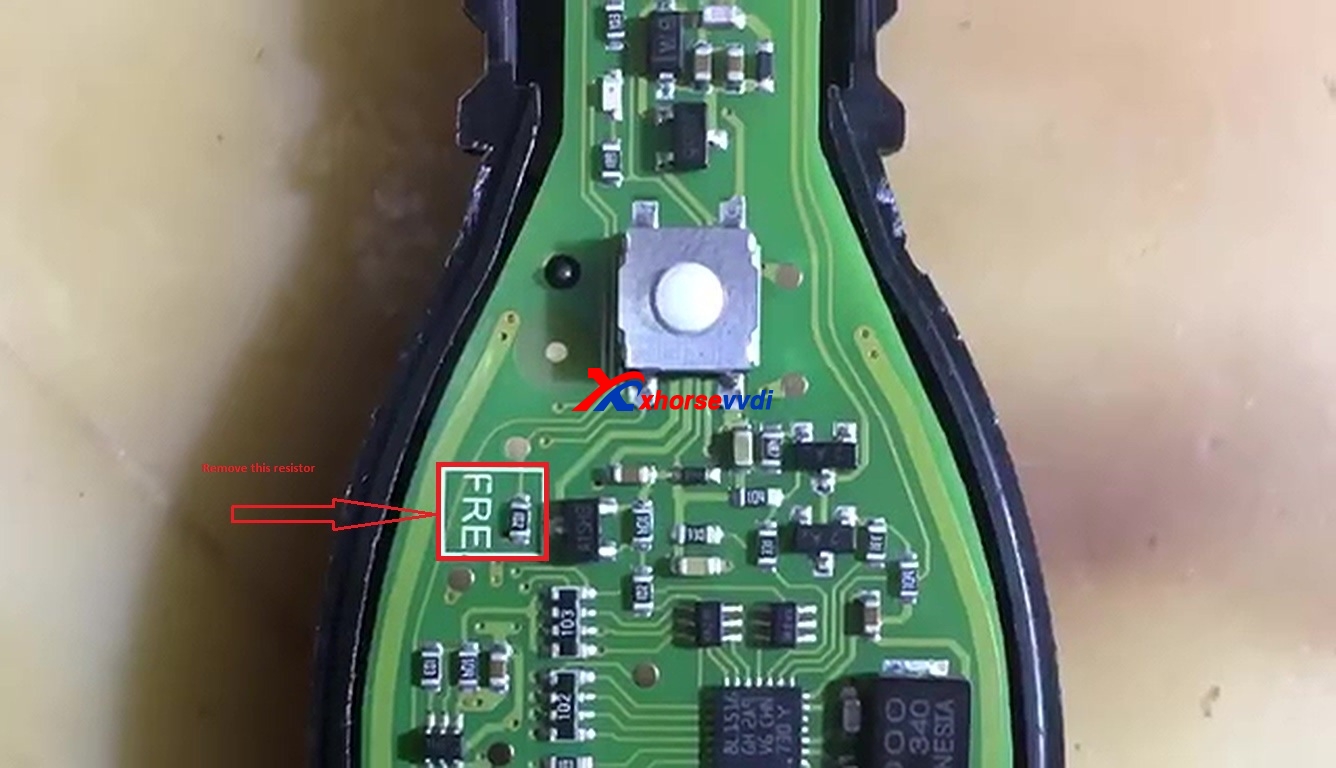
Here is a square resistor marked with “FRE”, just remove it.


Put the BE key into the VVDI key tool to read out 433MHZ frequency.
Option 2. change key frequency 315 MHZ or 433MHZ with VVDI MB tool

Open VVDI MB tool, Enter Menu -> Other functions -> reset key frequency.
00:14 – 00:018 : Click on ” Read out key frequency”, the result is 315MHZ.
Put the VVDI BE key on the top of the VVDI KEY TOOL and the key frequency is 315MHZ.
Insert the VVDI BE key into VVDI MB tool.
Choose” 433MHZ” then “Change key frequency”, reset successfully.
Put the VVDI BE key on the top of the VVDI KEY TOOL and read out 433MHZ.93.
Insert the VVDI BE key into VVDI MB tool and you can see ” the key frequency is 433MHZ.93″, click “OK” to confirm.
Explanation to the option “through PCB resistor”. who don’t have VVDI MB tool, then change the key frequency through PCB resistor.

vvdi BE key pro improved version for sale
http://www.chinacardiags.com/wholesale/xhorse-vvdi-be-key-pro-with-smart-key-shell-3-button.html


2018年10月17日星期三

How to connect BMW E-SYS to ICOM or ENET cable

BMW E-SYS connection tips and guides for those with ICOM cables or ENET Ethernet interface...
BMW ICOM settings for E-SYS:
Step 1: Run ISTA-D and check ICOM IP (sometimes, slightly different of Windows IP 169.254.55.70)
Probably iToolRadar will do the same

Step 2: Run Easyconnect
TYPE: REMOTE
IP: 169.254.55.83 (edit file ip_dv.txt and add IP)
MODE: OBD_ab625
ICOM Lock
Check

Step 3: Run E-sys
Connect via ICOM cable/Ethernet interface (tcp://169.254.55.83:50160)

Esys Connection Questions & Answers:
Question & Answer 1:
Q: I used the ISTAD method to obtain the IP address. However, I was not able to get EasyConnect utility to work. Fortunately, I was still able to get ESys working and coded the RDC_Safety and blinker # back to what it was before.
A: EasyConnect just to displays IP. You can use ZGW to ID as well as iToolRadar to lock.
Also, trimmed data has no affect on connection. Using the incorrect launcher chassis, target & interface, or neither external charger or running engine to provide power to certain modules, can result in the ECU_ETHERNET map error.
Question & Answer 2:
Q: I connected via ICOM/Ethernet not URL.
As for the connection issue, I'm not sure what it was but I was able to to get it sorted out.
A: URL is used for flash programming, but you will use VIN for ENET and ICOM/ENET for ICOM to code.
Question & Answer 3:
Q: Why is url for flashing ?
Can i also take ICOM/ENET for flashing, with a icom clone ?
A: Actually only ZGW must be flash programmed via IP.
ENET can be used with E-sys or ISTA-P to flash.
ICOM (including clone) can be used with E-sys, ISTA-P, or ISTA+.
Question & Answer 4:
Q: Which settings i must choose for flashing in e-sys (URL or ICOM/ENET) ?
A: I believe it is still URL, but you must use DHCP (either software or router).
Question & Answer 5:
Q: I did exactly as mentioned to connect ICOM to OBDII and to my computer, but then when I get to connect using ESys, I got the following error message:
"Connection check failed. Gateway/ECU are not correctly connected or not responding. However Function using ODX-Data can be used. [G188]"
A: With ICOM, you connect via ICOM. You will need to lock IP with program like EasyConnect or Itool Radar
With ENET, you connect via VIN.
You connect via gateway URL if flashing. That error message occurs when you have incorrect IP.
Question & Answer 6:
Q: For ICOM, I was using ITool Radar to lock the IP, then in ESys, I used the IP found in ITool Radar to connect. Am I doing the right thing? Or do I still need to use ISTA to get the IP address??
And with ENet, after plugging in everything, my computer failed to recognize any connection from the Ethernet port. What I mean is that, there wasn't even a flashing light on the port that indicates my computer is connected to something, not normal, right?
A: For ICOM, you do not need to separately use ISTA+; that is just another way to discover IP.
With ENET, you should get fallback IP (169.x.x.x)
Question & Answer 7:
Q: So if I don't need ISAT+ to get the IP, then any clue why I still get that error on ESys after I press connect? Seems like I am getting the proper IP address off ITool Radar... any chance that my car computer is not responding?
And with ENET, it is not getting any fallback coz my computer don't even know it is plugged in... no steady nor blinking lights on the port...
Some others suggested that my car computer could be in some kind of safe/protection mode that it blocks external connection... is there such thing?
A: With ICOM, you can certainly try with ISTA+ to see if you get a different IP to lock with Itool Radar. For ICOM, are you selecting 4th interface type and putting in the same IP?
For ENET, are you selecting 5th option (VIN)? Are you getting anything populated?
  • Make sure motor is running if car is not on a Charger.
  • Third party Security Suites (Antivirus / Firewall / etc) are disabled
  • LAN Adapter is set for DHCP and not using a Static IP.
  • The Target Connection Window should not be blank (It should show multiple target connections for different chassis')

Tachograph Programmer CD400 Odometer Test - How to

It’s aimed to help use Tachograph Programmer CD400 for odometer test


The CD400  programmer will automatically simulate a speed of 50km/h on 1000m distance and check if the odometer as been incremented by 1000m.

For the K1314/1318 the K reference is set to the last K measured if available, otherwise it is set to 8000.
For the other tachographs the K reference is set to the K factor programmed in the tachograph.
If required, the K reference can be adjusted manually pressing 'F1' (MODIFY).
KTCO1318/FTCO1319/EGK100

Press 'F2' to adjust the position of the start point. Press 'F3' (START) to start the test.

Wait until the progress bar is completed. The test can be aborded pressing 'F3' (STOP).
MTCO/VR2400/DIGITAL

The inital value of the odometer (D1) will be read. Press 'F3' (START) to start the test.

Wait until the progress bar is completed. The test can be aborded pressing 'F3' (STOP).

At the end of the test, the final odometer value will be read (D2). The difference between D2 and D1 will be calculated (D2-D1). If the difference equals 1000m, the test has been successful.
Tachograph CD400 buy:
http://www.chinacardiags.com/wholesale/tacho-programmer-tachograph-programmer-cd400.html

2018年10月14日星期日

JMD Red Super Chip vs Blue King Chip

Here comes the best and most powerful chip, S-JMD, to write with JMD Handy-baby car key programmer. Works better than the blue chip.
JMD Red Super Chip (S-JMD) for Handy Baby car key copy

Source: http://www.chinacardiags.com/wholesale/jmd-red-super-chip-s-jmd-all-in-one-for-handy-baby-key-copy-machine.html
it is rewriteable and can used for many times
Blue Chip = 46+4C+4D+T5(11,12,13)+G (4D-80bit)
Red Chip = Blue King Chip + 47 Chip + 48 Chip
Red Chip = 46+4C+4D+T5(11,12,13,33)+G (4D-80bit)+47+48
ChipJMD Red Super ChipJMD Blue King Chip
Image  
Price34.99 usd (5pcs)31.99 usd (5pcs)
46 ChipYesYes
4C ChipYesYes
4D ChipYesYes
G Chip (4D-80bit)YesYes
47 ChipYesYes
48 ChipYesNo
T5 Chip (11,12,13)YesNo
Conclusion: the JMD super chip (red) is much more valuable and cost-effective. It covers more chis for more vehicles to add new keys and can be used repeatedly!
Video: JMD super chip used as Ford 80bit chip to add a new key
https://www.facebook.com/liumingandy/videos/2212580635682917/

 http://www.chinacardiags.com/

2018年10月8日星期一

UP400 Programmer User Manual: Read/Write Data with OtoSys IM600

UP400 Programmer User Manual for newbies:
What is UP400 Programmer
What is UP400 Programmer used for
What eeprom transponder can be R/W
UP400 Programmer test report
In detail...
What is UP400 Programmer:
The UP400 is specially designed to read transponder data (including Mercedes Benz infrared smart key), clone and generate exclusive keys, read/write on-board EEPROM data, and read/write Freescale 9S12 MCUs.
By working with diagnostic tool and PC that are both loaded with programmer software, the UP400 can read/write transponder data quickly and accurately.

Source: http://www.chinacardiags.com/
What is UP400 Programmer used for:

  1. DC Port – provides 12V DC power supply.
  2. USB Port – provides data communication and 5V DC power supply.
  3. DB 26-Pin Port – connects with the Mercedes Benz infrared cable,
vehicle key cable, ECU cable, MCU cable, MC9S12 cable.
  1. Cross Signal Pins – holds the MCU board, MCU spare cable or DIY
signal interface.
  1. IC Card Induction Area
  2. Vehicle Key Slot – holds the vehicle key.
  3. Transponder Slot – holds the transponder.
  4. Remote Control Transponder Induction Area
  5. Mercedes Infrared Key Slot – holds the Mercedes infrared key.
  6. Status LED – indicates the current operating status.
  7. Locker – locks the EEPROM component transponder slot to ensure
proper functioning.
  1. EEPROM Component Transponder Slot – holds the EEPROM plug-in
transponder or EEPROM socket.
DC Port
DC Port is used to provide 12 V power supply for the UP400.
USB Port
The Type B USB port provides data communication and power supply for
handheld device, PC and UP400.
DB 26-Pin Port
Five components can be connected to this port: Mercedes Infrared Cable,
APA102 – Remote Match Cable (optional), APA104 – ECU Cable, APA105
– MCU Cable and APA106 – MC9S12 Cable.
  1. APA102 – Remote Match Cable (optional)

  1. APA104 – ECU Cable

  1. APA105 – MCU Cable

  1. APA106 – MC9S12 Cable

Cross-shaped Signal Pin
The Cross-shaped signal pin is used to place MCU board, MCU spare cable or DIY signal cable to read or write MCU and ECU chips.
IC Card Induction Area
It is used to read and write IC card information.
Vehicle Key Slot
It is used to hold the vehicle key to read or write vehicle key information.
Transponder Slot
It is used to hold the transponder to read or write transponder information.
Remote Control Transponder Induction Area
It is used to read and write remote control transponder information.
Mercedes Infrared Key Slot
It is used to hold Mercedes infrared key to read or write Mercedes vehicle key information.
Status LED
The Status Indicator shows the current operating status of the UP400. See the table below for detailed description.

Locker
It is used to place EEPROM chip or socket to read or write EEPROM
information.
What chips UP400 can read and write:
EEPROM Component Transponder Slot
It is used to hold the EEPROM plug-in transponder or EEPROM socket.
EEPROM Read/Write Transponder Coverage:

Chip Type Name Chip Type Name
ATMEL AT24C01 ATMEL AT24C1024
ATMEL AT24C02 ATMEL AT24C128_1.8
ATMEL AT24C04 ATMEL AT24C256_1.8
ATMEL AT24C08 ATMEL AT24C512_1.8
ATMEL AT24C16 ATMEL AT24C01A
ATMEL AT24C32 ST ST24x01/ST25x01
ATMEL AT24C64 ST ST24x02/ST25x02
ATMEL AT24C128 ST ST24x04/ST25x04
ATMEL AT24C256 ST ST24x08/ST25x08
ATMEL AT24C512 ST ST24x16/ST25x16
ST M24C01 ATMEL AT25640
ST M24C02 ATMEL AT25128
ST M24C04 ATMEL AT25256
ST M24C08 ATMEL AT25512
ST M24C16 ATMEL AT25010_1.8
ST M24C32 ATMEL AT25020_1.8
ST M24C64 ATMEL AT25040_1.8
FAIRCHILD NM24C16U ATMEL AT25080_1.8
FAIRCHILD NM24C16UT ATMEL AT25160_1.8
FAIRCHILD NM24C17U ATMEL AT25320_1.8
FAIRCHILD NM24C17UT ATMEL AT25640_1.8
MICROCHIP 85C72 ATMEL AT25128_1.8
MICROCHIP 85C82 ATMEL AT25256_1.8
MICROCHIP 85C92 ST M95010
NXP PCF8582C ST M95020
NXP PCF8594C ST M95040
NXP PCF8598C ST M95080
ATMEL AT25010 ST M95160
ATMEL AT25020 ST M95320
ATMEL AT25040 ST M95640
ATMEL AT25080 ST M95128
ATMEL AT25160 ST M95256
ATMEL AT25320 ST M95512
MICROCHIP 25xx040 NATIONAL NM93C13
MICROCHIP 25xx080 NATIONAL NM93C14
MICROCHIP 25xx160 NATIONAL NM93C14TM8
MICROCHIP 25xx320 MICROCHIP 93C46X
MICROCHIP 25xx640 MICROCHIP 93C46A
MICROCHIP
25xx040_TSS
OP
MICROCHIP 93C46
MICROCHIP
25xx320_TSS
OP
MICROCHIP 93C46AX
MICROCHIP
25xx640_TSS
OP
MICROCHIP
93C46BX_93C46
CX
CATALYST CAT25C01 MICROCHIP 93C56A
CATALYST CAT25C02 MICROCHIP 93C56
CATALYST CAT25C04 MICROCHIP 93C66A
CATALYST CAT25C08 MICROCHIP 93C66
CATALYST CAT25C16 MICROCHIP 93C76A
CATALYST CAT25C32 MICROCHIP 93C76
CATALYST CAT25C64 MICROCHIP 93C86A
CATALYST CAT25C128 MICROCHIP 93C86
CATALYST CAT25C256 ATMEL AT93C46A
ST M35080 ATMEL AT93C46
XICOR X5043 ATMEL AT93C46R
XICOR X5045 ATMEL AT93C56
XICOR X25043 ATMEL AT93C57
XICOR X25045 ATMEL AT93C66
MICROCHIP 93C06 ATMEL AT93C76
ATMEL AT93C86 SONY CXK1011
NATIONAL NM93CS06 SONY CXK1012
NATIONAL NM93CS46 SONY CXK1013
NATIONAL NM93CS56 Seiko S_24H30
NATIONAL NM93CS66 Seiko S_24H30_SOP8
FAIRCHILD FM93CS46T Seiko S_24H45
ST M93C46 Seiko S_24H45_SOP8
ST M93C56 Seiko S_24S30
ST M93C66 Seiko S_24S45
ST M93C76 TOSHIBA TC89101
ST M93C86 TOSHIBA TC89102
ST M93S46 TOSHIBA TC89121
ST M93S56 TOSHIBA TC89122
ST M93S66 Xicor X24C44
ATMEL AT59C11 TMC TMC93LC56
ATMEL AT59C22 TMC TMC93LC57
ATMEL AT59C13 TMC TMC93LC66
OKI MSM16911 TMC TMC93LC86
TMC TMC93LC46

Chip Type Name
FREESCALE MC9S12DG128
FREESCALE MC9S12DJ64
FREESCALE MC9S12DG256
FREESCALE MC9S12DT128
FREESCALE MC9S12DT256
FREESCALE MC9S12XDP512
FREESCALE MC9S12XET512
FREESCALE MC68HC08AZ60
FREESCALE MC68HC(9)08AB16A
FREESCALE MC68HC908GR16A
FREESCALE MC68HC(7)05X32
FREESCALE MC68HC705E6
FREESCALE MC68HC11E9
INFINEON SAK-TC1766
INFINEON SAK-TC1793
INFINEON SAK-TC1796
INFINEON SAK-TC1797

UP400 Programmer Test Report:
Check lock status success!


Tech support from https://www.facebook.com/groups/1642064505830743/

http://www.chinacardiags.com/

2018年10月7日星期日

(Solved) Global TIS Error E4998: License invalid for this computer

Confirmed! Global TIS is verified to work 100% with VM Ware on a Macbook Pro or Air. Installation help can be used for Error “E4998: License invalid for this computer (please, re-register)” when you try and launch GlobalTIS. You can find a work around here but it re-register usually means re-install...
Here is the version of VM can be used on a Mac:
https://copy.com/koq0QIXmet7M
So, the process is:
1. Uninstall GlobalTIS
2. Reboot VM
3. Click on the GlobalTIS ISO on the desktop. This will launch the installer. When asked, say IGNORE to not use Saved Data from previous install!
4. Install GlobalTIS.
5. Enter Fake Dealership information. Register via FAX. Save the PDF information. (there's no reader installed in this XP so copy and paste it to the host system)
6. Click on the shortcut to the GlobalTIS keygen on the Desktop. This will take you to the folder in my documents.
7. You need to copy over two files: KeyGen.class and Keygen.bat to GlobalTis lib folder in the following location:
Code:
C:\Program Files\GlobalTIS\tomcat\webapps\tis2web\WEB-INF\lib
  1. Open license info.txt on desktop. This will be holding pen for our software key.
    9. Paste your code from the registration.pdf inside the text document. Remove the dashes.
    10. Run/CMD
    11. Change directory to Keygen and press enter.
Code:
cd C:\Program Files\GlobalTIS\tomcat\webapps\tis2web\WEB-INF\lib
  1. Run the keygen copying your code without dashes at end (from registration.pdf). Here's an example with how it should look:
Code:
keygen.bat 155CE2A5C2FCD8F0919F7DDDC3FBC39AD0670F45832DDB3D26B92B8A03642A72
  1. Select all in the command window and copy (right click) then paste over to your holding pen text document.
    14. Enter the Request ID (in PDF), Subscriber ID(Keygen - starts with a "T") and the License Key to your GlobalTIS registration form.
    15. Sometimes the register now button is greyed out. I found that if I edit my dealership data bogusly (add a space) it somehow is able to be un-greyed.
    16. If Java MDI comes up saying it isn't installed, you can hit "skip"